From stock review to your next run.
Follow a sample workflow through Dashboard, Catalog & Parts, Build Inventory, and Print Planning. See how the records fit together before you set up your own factory.
These FactoryGrids screens use Demo Factory sample data. Use the steps to practice planning a run, then repeat the review with your own records before sending work to a machine. On small screens, focused details highlight each decision. Select any screenshot or its full-image link to inspect the complete app window.
By the end, write down the product you want to make, your target quantity, any missing components, and the work already in the queue. Use that list to decide whether to schedule the run or restock first.
Find what needs attention.
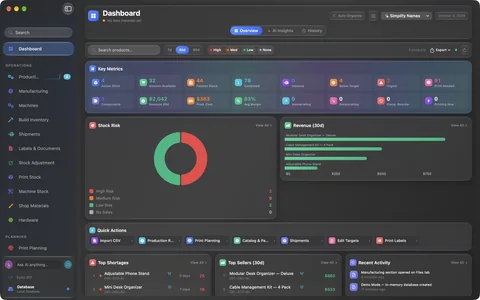
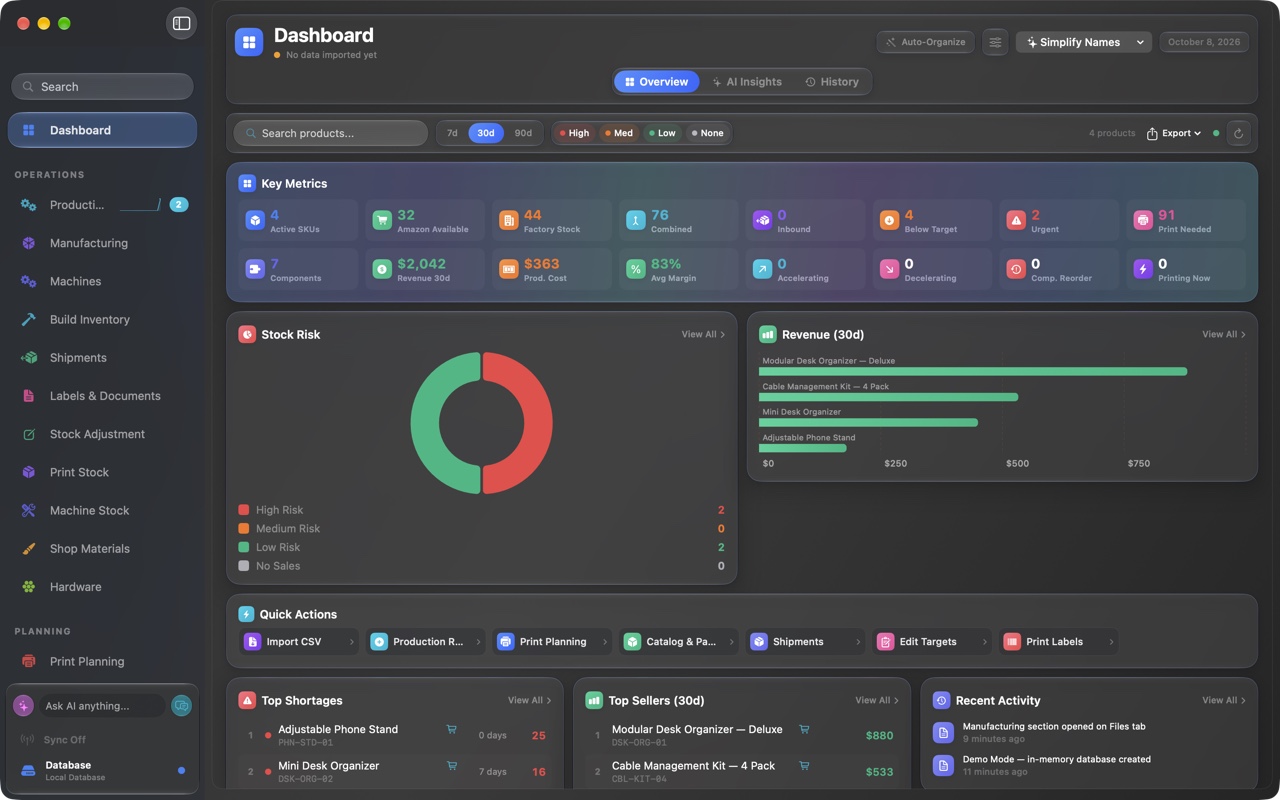
Compare stock risk, recent revenue, shortages, and top sellers before choosing which product to review.
The sample dashboard puts these signals together. A sales trend alone does not tell you what to make: check current stock and the materials required before committing a run.
Decision to review: Which product needs a closer look today?
Top sellers, screenshot detail
Check the product's planning records.
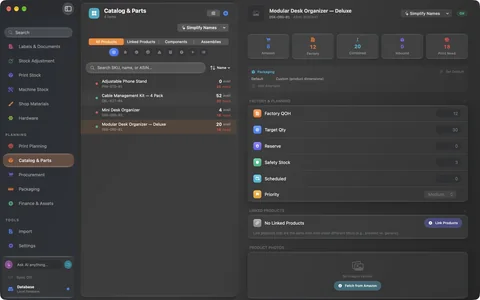
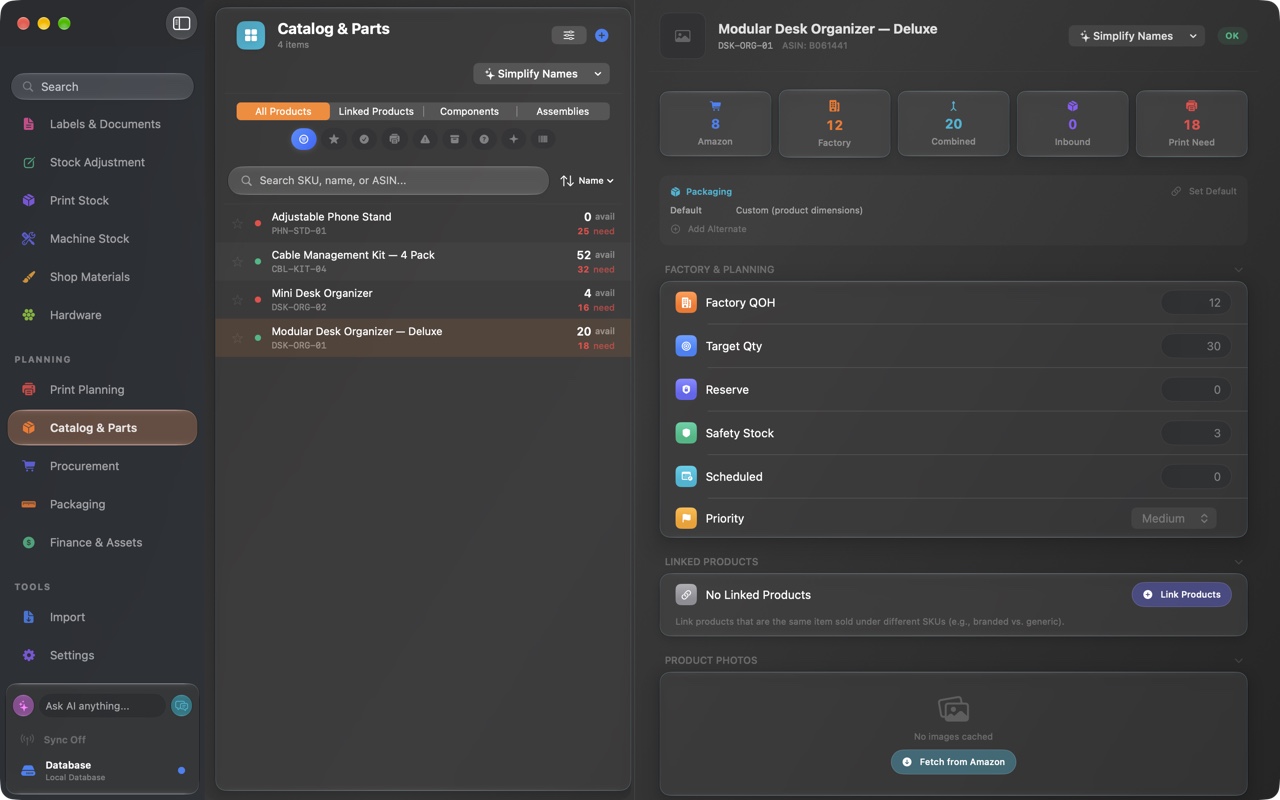
Review quantity on hand, target quantity, reserves, safety stock, and scheduled work in the product record.
The selected desk organizer shows its factory stock and planning fields together. Confirm those records reflect your operation before using them to set priorities.
Decision to review: How much stock do you need, and what is already planned?
Stock totals, screenshot detail
See what the parts can support.
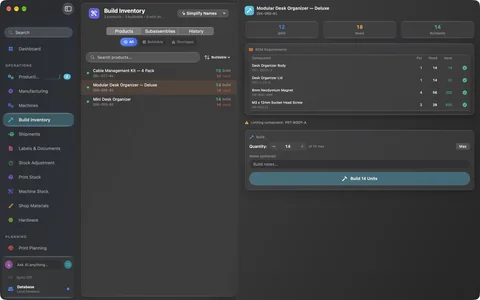
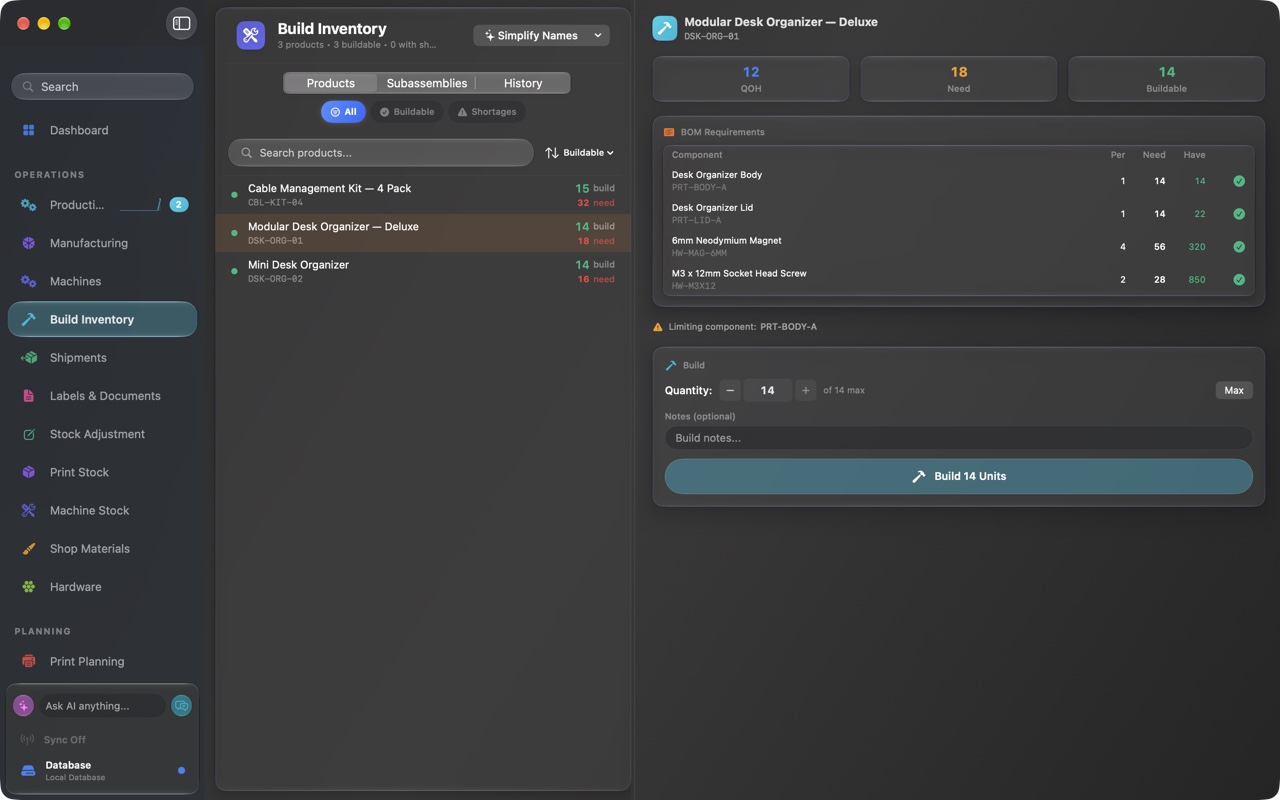
Compare the component requirements with parts on hand and the buildable quantity.
This sample desk organizer uses a body, lid, mounting magnet, and screws. The screen shows the quantity supported by the recorded parts. Verify physical stock and any reservations before starting work.
Decision to review: Can you build the required quantity, or does a component need restocking?
Need and buildable quantity, screenshot detail
Review the work still needed.
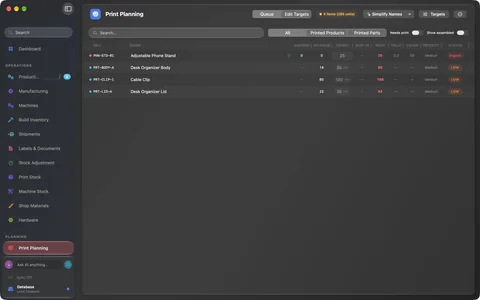
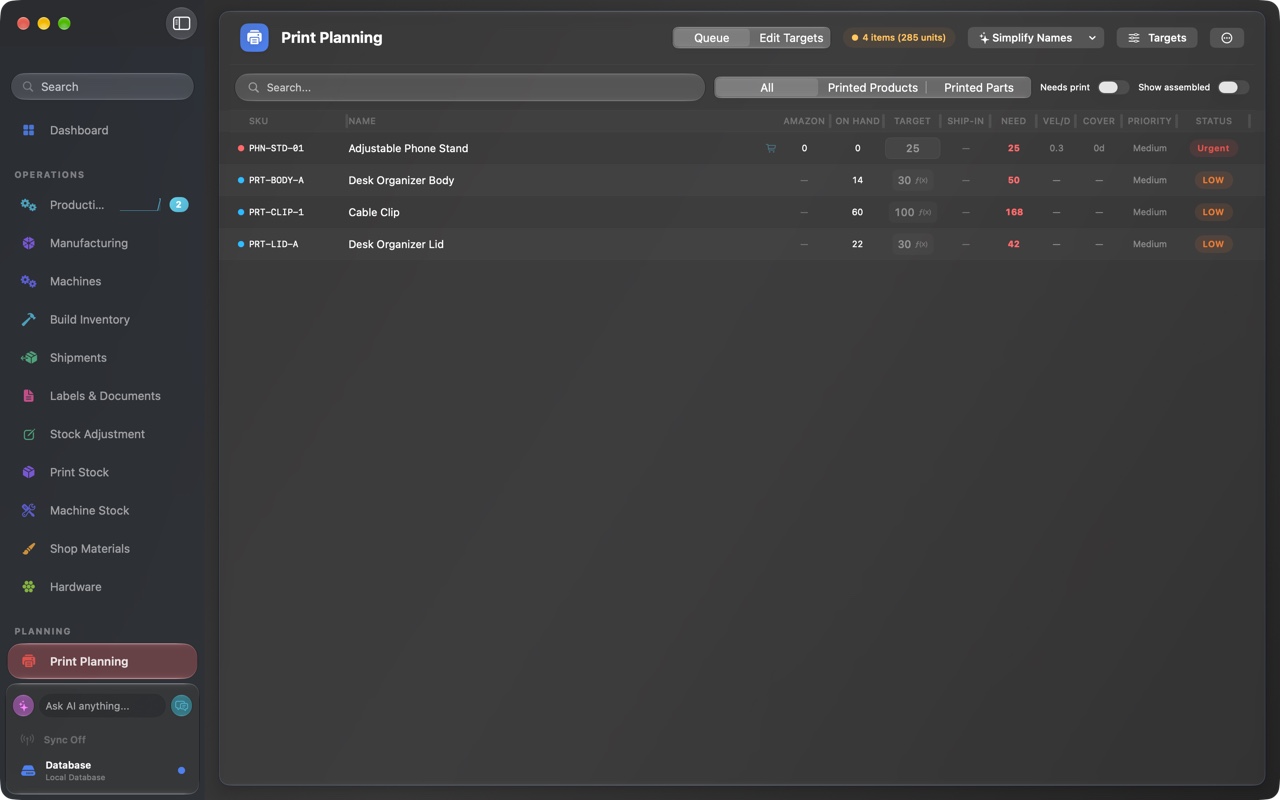
Use the queue to compare stock, targets, required quantities, and status for printed products and parts.
The sample includes a phone stand, organizer body, cable clip, and organizer lid. Check the relevant machine's availability and material before deciding which work to send next.
Decision to review: Which production need should get the next available capacity?
Need and status, screenshot detail
From a production plan to ready to ship.
Before your own shipping run, review finished quantities, packaging records, and the labels or documents required. The screens above show planning; this tour does not show a completed shipment.

Review packaging
Confirm the package information and supplies for the product. Explore packaging and shipment features.
Check your connections
Confirm the supported actions and setup for your machines, channels, and shipping accounts. Find your integrations.
Set up one connection
Start with your compatible Mac and one machine or channel. Follow the setup guide.
Requires macOS 27 or later on Apple Silicon. Installer access is by invitation. Check current release availability.