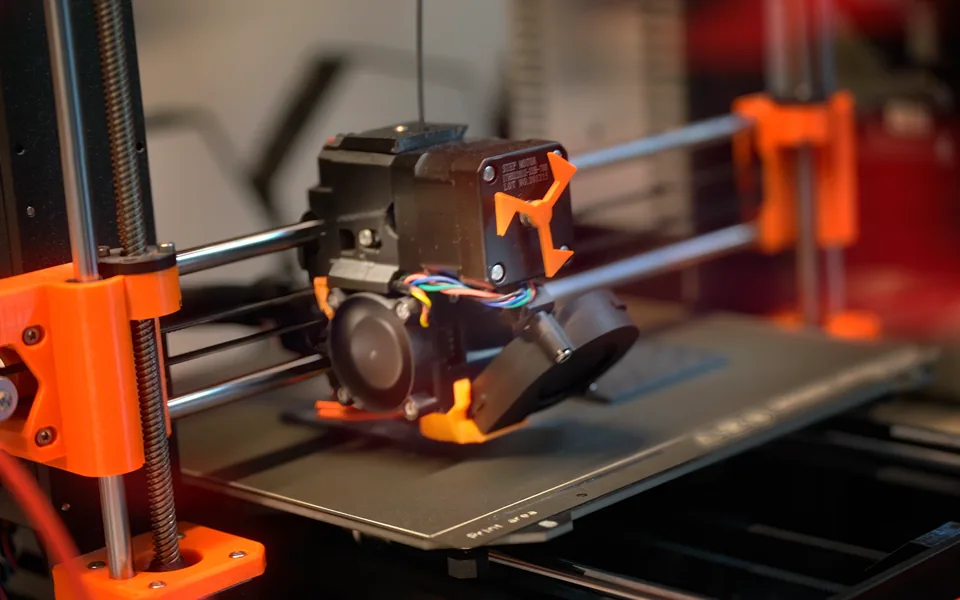
Know what to make next. Then get it out the door.
FactoryGrids is downloadable Mac software for small manufacturers, sold by subscription. Manage inventory, products and components, production runs, 3D-printer farms, shipments and parcels. Import supported marketplace data from Shopify, Etsy, and eBay and FBA inventory reports from Amazon, review dashboards, and use the AI assistant to help plan your next move.
FactoryGrids is software only. We sell no physical goods or services.
Native macOS app · macOS 27 or later · Apple Silicon
One licence covers up to 10 Macs. Production machines are shop equipment such as 3D printers and CNC machines, not Macs. Compare plans and production-machine limits.
Machines and production.
Connect the machines that make your products over the protocols they already speak, then run them like one production line instead of a row of disconnected queues.
Browse machine connection options, including integrations in beta. Check supported actions and availability.
Connect your machines. Watch every run.
Send jobs and monitor status across supported printers and CNC controllers. See active work, idle machines, and queued jobs together to choose where the next run should go.
- Send jobs over MQTT, Moonraker, OctoPrint, PrusaLink, GRBL, and FluidNC from one place
- Live status cards for active and idle machines, with jobs and queue depth
- Capacity at a glance, so you can balance load across the fleet
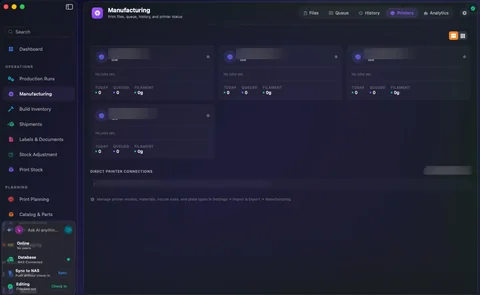
Machine status view (earlier interface).
Planning that maps to what you need to make.
Turn your priorities into a production plan linked to your catalog. Review the products, components, and quantities needed for the next run, then share that plan with the shop floor.
- Review required products, components, and build quantities
- Use available stock and target quantities to plan replenishment
- Keep the office and shop floor working from the same plan
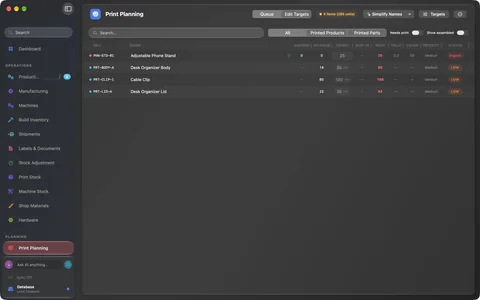
Demo Factory: print-planning quantities and stock status.
Sales channels and demand.
Use demand and stock coverage to set production priorities. Sales and inventory from connected channels help you decide which products need the next run.
Decide what to make before the shelf runs empty.
Bring imported sales and inventory into one view of demand. Compare those records with stock on hand and planned production to decide what to make or restock next. Supported data and refresh behavior vary by channel.
- Connect Amazon, Etsy, and Shopify with your own credentials
- Bring supported sales and inventory imports into one view
- Use stock coverage and sales trends to choose production priorities
- Check each channel's supported actions in the integration directory
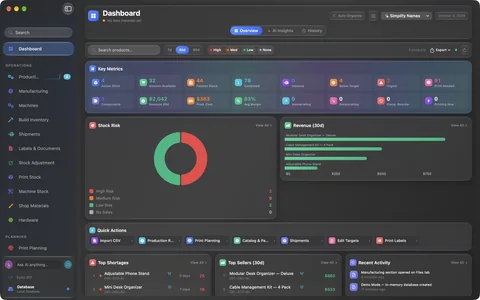
Demo Factory: demand and stock overview with sample data.
Materials and inventory.
See stock availability alongside planned production. Keep materials, parts, and finished builds in one place to understand what you can build and ship.
Spot material shortages before a run starts.
Compare materials on hand with the requirements of planned runs. Check buildable quantities and limiting components to decide whether to start a build or restock first.
- Check material requirements against recorded stock
- Keep parts and bills of materials linked to finished products
- Review buildable quantities for products and subassemblies
- Identify the component limiting a planned build
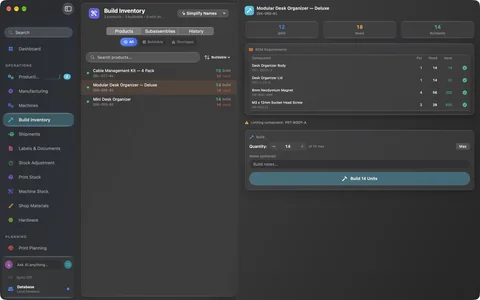
Demo Factory: component requirements and buildable quantity.
Built for real operations.
Support the details of day-to-day operations: multiple currencies and sites, inventory reservations, and alerts routed to your team.
Multi-currency
Work with multiple currencies, with currency-aware amounts and local number formatting.
Multi-factory profiles
Run separate brands and sites from one app, with per-factory scoping for machines, stock, and orders. Factory covers up to three operating sites. Contact us for a Factory software subscription quote.
Inventory reservations
Claim stock for planned shipments so production cannot double-book the same parts across two runs.
Alert rules and routing
Set thresholds that route to Slack, Discord, Email, SMS, or Pushover, with rolling one-hour rate limits so you are warned, not buried.
Ask your data what needs attention.
Ask Atlas AI about stock, sales trends, and production needs. Get summaries and suggested priorities based on the data in FactoryGrids, then decide what to do next. Choose a supported local or hosted provider; availability and capabilities vary. Hosted AI usage is billed to your provider account, separately from your FactoryGrids subscription.
Turn questions into priorities to review.
Use Atlas AI to help explain trends, risks, and production needs from the operational data you provide. Review its suggestions alongside your records, then choose the next action for your business.
- Ask about stock risk, demand trends, and production priorities
- Choose providers by AI feature; check compatibility in the directory
- AI Insights surface as chips right on the dashboard
- AI draft replies for customer tickets, plus auto-naming for products and files
- AI image generation with compatible providers for product and listing art
- API keys are stored locally and sent to your selected provider to authenticate requests
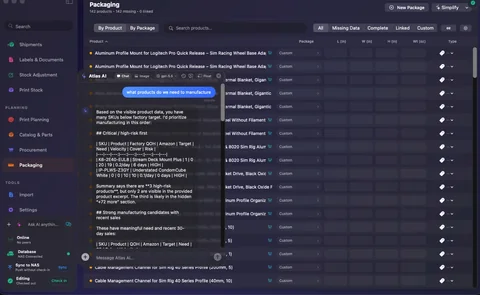
Atlas AI example in an earlier interface. Review suggestions against your own records.
AI that respects your data.
Choose where AI requests are processed: on your Mac, on your own server, or by a hosted provider. Supported AI features vary by provider. Compare AI connection options.
Local-first key storage
Your keys are stored locally and sent directly to the provider you choose to authenticate requests. Hosted AI also receives the prompts, operational context, and attachments included in those requests.
On-device option
Choose Apple Foundation's on-device option to process prompts on the Mac itself, with no provider API key or hosted inference request.
Self-hosted option
Point Atlas AI at an Ollama instance running on your Mac or local network. Requests go to that server; where you host it determines where the data is processed.
Product data.
Keep product records, stock, and planning targets together. Review the details behind each product in the same place you plan what to build.
Review the record behind each product.
Find a product by name or SKU, then review its stock and planning fields. Keep target quantities, reserves, and safety stock beside the selected product record.
- Review factory, marketplace, combined, and inbound stock
- Set target quantities, reserves, safety stock, and priority
- Keep packaging settings and linked product controls in view
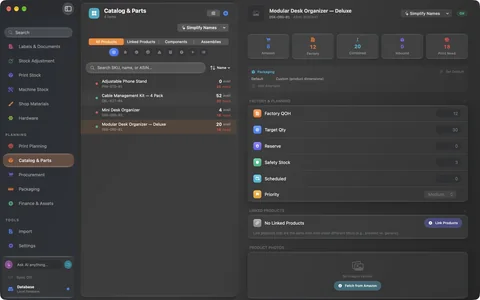
Demo Factory: product stock and planning fields.
Shipping and fulfillment.
Prepare packaging, labels, shipments, and Amazon FBA prep alongside production. See what is ready to ship and what still needs attention.

Buy postage through supported carriers and shipping services using your own accounts. Postage and third-party service fees are separate from your FactoryGrids subscription.
From finished build to out the door.
Work through a queue of shipments ready to go. Create the labels and documents each shipment needs, with production records close at hand to keep the handoff clear.
- Buy and print carrier labels from a clear, ready-to-go queue
- Shipments organized right alongside production
- Amazon FBA shipment prep without the busywork
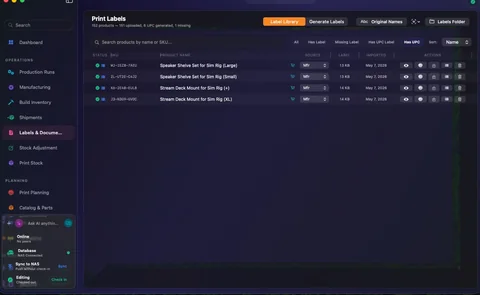
Product-label library (earlier interface). Carrier-label flow is not shown.
Track packaging stock before shipping.
Record the boxes, inserts, and materials each product uses. Keep packaging linked to parts and stock so you can review supplies before a shipping run.
- Define the packaging components each product needs
- Keep packaging records alongside parts and stock
- Check packaging supplies before preparing shipments
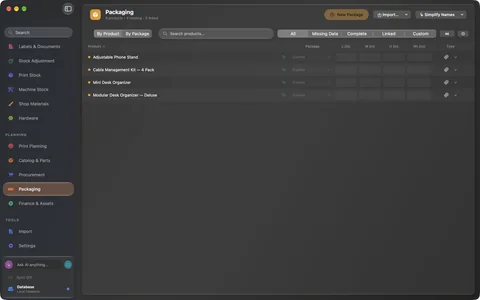
Demo Factory: packaging records awaiting dimensions. No completed shipment is shown.
Carriers, scales, and label printers.
Shipping labels
Buy and print labels through supported carriers and shipping services using your own accounts.
Automatic weight capture
A connected USB shipping scale drops the parcel weight straight into the shipment.
Compatible label printers
Print through CUPS-compatible printers, with Zebra ZPL output for compatible thermal label printers.
Validated addresses and documents
Address validation, box label PDFs with QR codes, and packing list PDFs, ready for the box.
Data and reliability.
Keep your core factory database on your own Macs or network storage. Optional integrations can send data to the services you enable.
Keep control of your operational database.
Keep your database on storage you control, with backup and recovery tools. Optional connections send data to the services you enable, including configured AI, marketplaces, backup storage, shipping, and notification services. See the Privacy Policy for details about data handling and optional sharing.
- Shared local and NAS storage that you control
- Basic local backup, restore, and complete data export on every plan, including Free
- Connect supported sales channels with your own credentials
- Choose which external services receive integration data
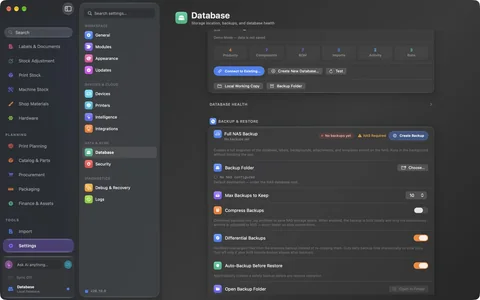
Demo Factory: database and backup settings. A NAS connection is not configured in this example.
Server Mode: turn one Mac into the factory hub.
Use a compatible Mac as the hub for your operation, with supported devices connecting over your network. The iPhone, iPad, Apple Watch, Apple TV, and Vision Pro companion apps are free. Check Mac requirements and companion release availability before planning your setup.

Built-in connection hub
A built-in MQTT 3.1.1 broker runs inside the app. No Mosquitto, EMQX, or Docker to install.
Find and pair devices
Supported devices find the hub over Bonjour and pair with a QR code. Companion access depends on current availability.
Signed host messages
Signed messages help the hub verify paired devices. Manage connections and revoke device access from the admin dashboard.
Admin dashboard
Manage connected peers, see who is online, and revoke access from one admin dashboard.
Also included.
The smaller things that add up to a tool you can run a business on.
Barcode scanning
Scan with compatible USB or Bluetooth barcode readers.
Spotlight indexing
Find products, runs, and shipments from macOS Spotlight.
Quick Look
Preview 3MF, G-code, and STL files right in Finder.
Shortcuts and Siri
Trigger common actions with Shortcuts and Siri.
Bambu Slicer CLI
Slice through the Bambu Slicer CLI from inside the app.
CSV import and export
Move data in and out with reusable templates.
FBA prep templates
Create Amazon FBA prep spreadsheets from templates.
Undo across operations
Step back out of mistakes across the app.
Activity log
A running record of what changed and when.
Daily backups
Automatic daily backups and diagnostic bundles.
Smart search
Search across products, runs, and shipments at once.
Webhook receiver
Accept inbound order and inventory updates by webhook.
See how it fits your operation.
Tell us about your operation and ask about the FactoryGrids software subscription. Explore how the app helps you turn sales and stock data into production and shipping decisions.